AI PRODUCT PHOTOGRAPHY

Make product photos people want to click.

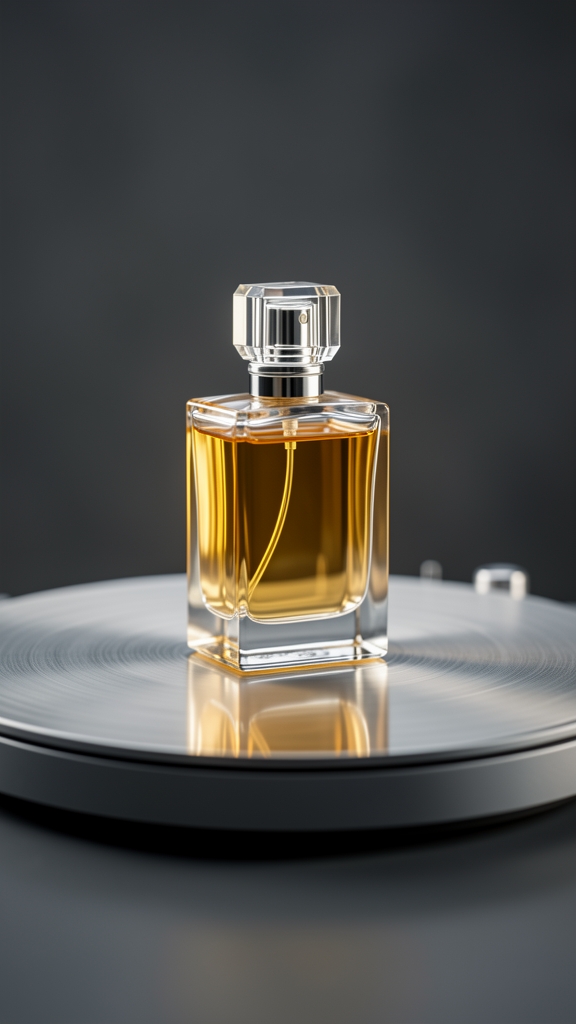
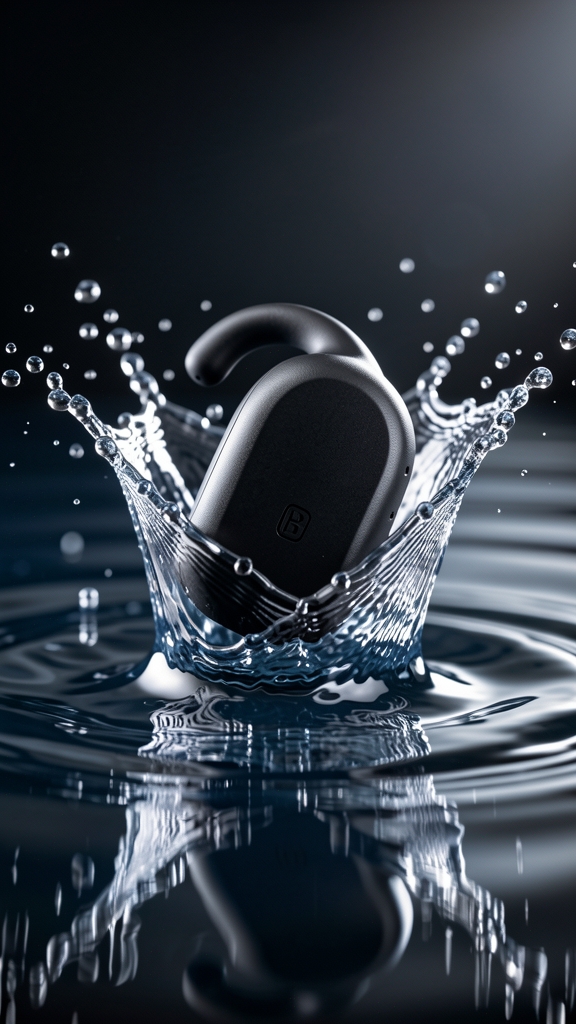
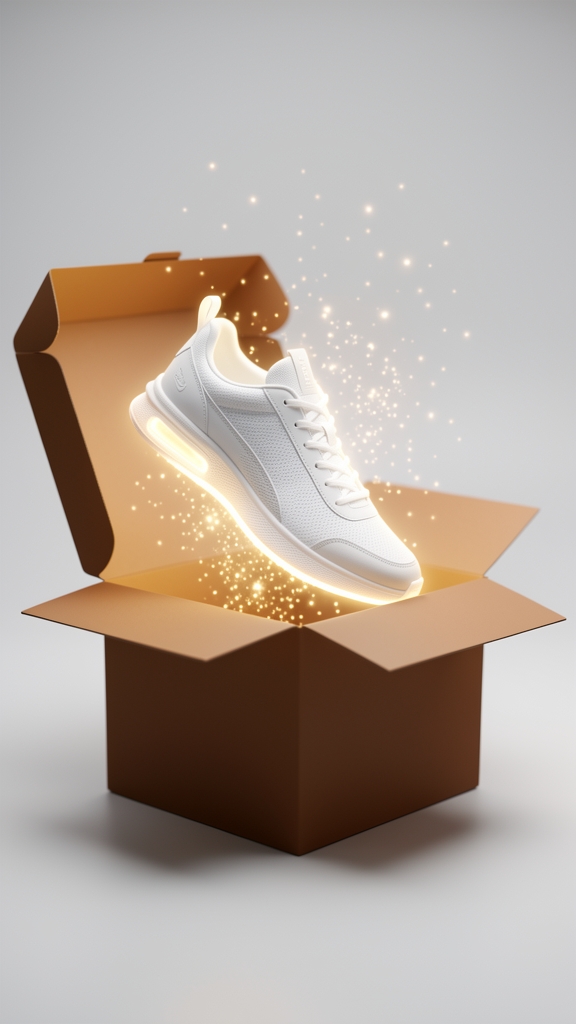
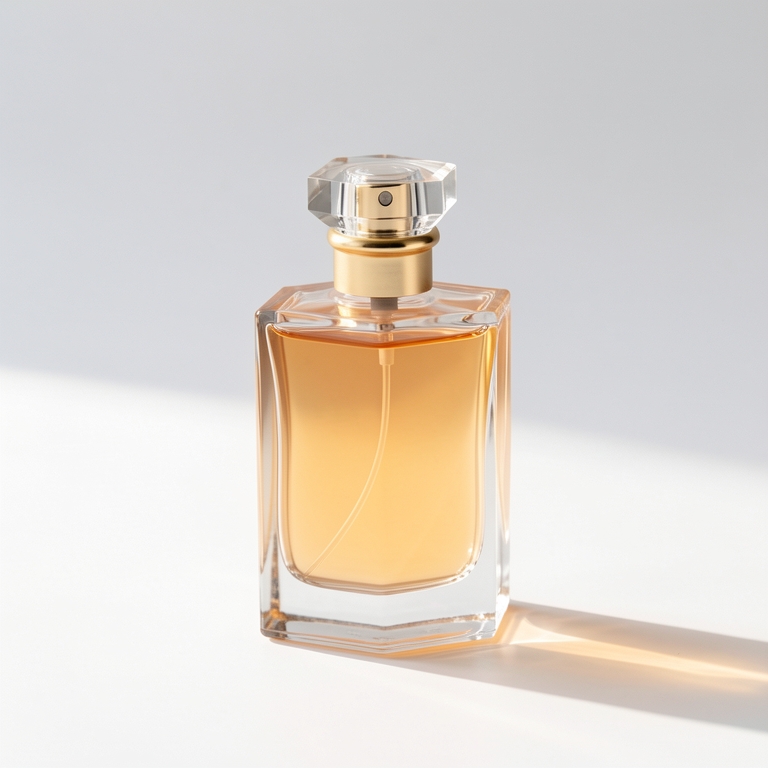
Upload one product image. VOGLA keeps the item intact and creates a polished product shot with the background, lighting, shadow and crop you choose.

No design software or prompt engineering required.

1. Upload

Start with the product photo you already have.

2. Art direct

Choose a background, lighting, shadow, angle and ratio.

3. Publish

Download a clean visual for your store, ad or social post.

Built for the assets that sell.

Store listings.
Create a consistent, premium catalog without a studio shoot for every variation.

Paid social.
Turn the same product into square, portrait and landscape creative ready for testing.

Campaigns.
Generate a clean starting visual, then create variations and short motion from the same workspace.

Small teams.
Spend time choosing the winning creative direction instead of repeating image cleanup.

Direct the scene, never the product

The single rule that separates usable output from unusable output: describe everything around the product, and describe nothing about the product itself. Specify background type, lighting style, shadow treatment, camera angle, and crop. Leave the shape, colour, logo, texture, and proportions alone.

The moment a prompt starts describing the product — "sleek matte bottle", "rich amber liquid" — the model treats those as instructions to generate rather than facts to preserve, and it will happily invent a product that never existed. Structured controls beat free-text prompting here precisely because they make that mistake harder to commit.

A repeatable three-step workflow

Start with a clear source image. It does not need to be perfect, but the product edges and true colour need to be legible — the model cannot invent geometry it cannot see.

Set the art direction before generating, not after. Choosing background, lighting, shadow, angle, and crop up front is what makes results consistent across a catalogue; adjusting after each generation is what makes them drift.

Then create variants per channel from the same approved direction: square for listings, 4:5 for paid social, 16:9 for landing pages and email. One direction, several shapes, rather than several unrelated images.

Variations versus starting over

Variation is not a rescue tool. It is for exploring adjacent directions after one asset is already approved, for producing several options to test without rebuilding the concept, and for finding a better composition while keeping the same product and scene.

If the base image is wrong — wrong product framing, wrong lighting, wrong scene entirely — variations will produce a set of images that are all wrong in slightly different ways. Start over instead. The tell is when you find yourself generating a tenth variation hoping one will fix a problem that was present in the first.

Reframing and seasonal reuse

Generative expand solves a framing problem, not a quality one: turning a tight square into a 16:9 hero, creating negative space for copy overlay, or preparing a vertical format without cropping the product out of frame. Reach for it when the composition is right but the canvas is the wrong shape.

Seasonal campaigns rarely justify a full reshoot. Restyling the scene around an already-approved product — new backdrop, seasonal palette, different lighting mood — keeps the product consistent across the year while the context changes, which is usually what the campaign actually needed.

Common questions

Why did the AI change my product?

Almost always because the prompt described the product. Specify only the scene — background, lighting, shadow, angle, crop — and leave shape, colour, logo, and texture undescribed, so they are preserved rather than regenerated.

How good does my original photo need to be?

It does not need to be studio quality, but the product edges and true colour must be visible. The model works around the product it can see; it cannot reconstruct geometry that is missing from the source.

Should I generate variations or start again?

Use variations to explore alternatives once a direction is approved. If the base image is wrong, start over — variations of a flawed base produce a set of images that share the same flaw.

How do I get one product into every channel size?

Approve one art direction, then generate per-channel variants from it: square for listings, 4:5 for paid social, 16:9 for landing pages. Set the ratio before generating, and use expand rather than cropping when a wider canvas is needed.

Your next product shot starts with one upload.